
Drag and Drop in the Cranberry Editor
Overview
The drag-and-drop (DnD) system in the Cranberry editor is built around a small, well-defined set of payload types. Each payload describes the data that is transferred when a user drags an item from one widget or viewport location to another. By classifying payloads into distinct categories we can:
- Keep the core system simple and extensible.
- Support a variety of use‑cases, from moving assets in the content browser to reparenting actors in the viewport.
- Provide a clear contract between the source (drag source) and the target (drop target) that can be extended as new feature areas are added.
The following diagram illustrates the possible source‑to‑target relationships for each editor widget and shows how the different payload types interact with the rest of the system.
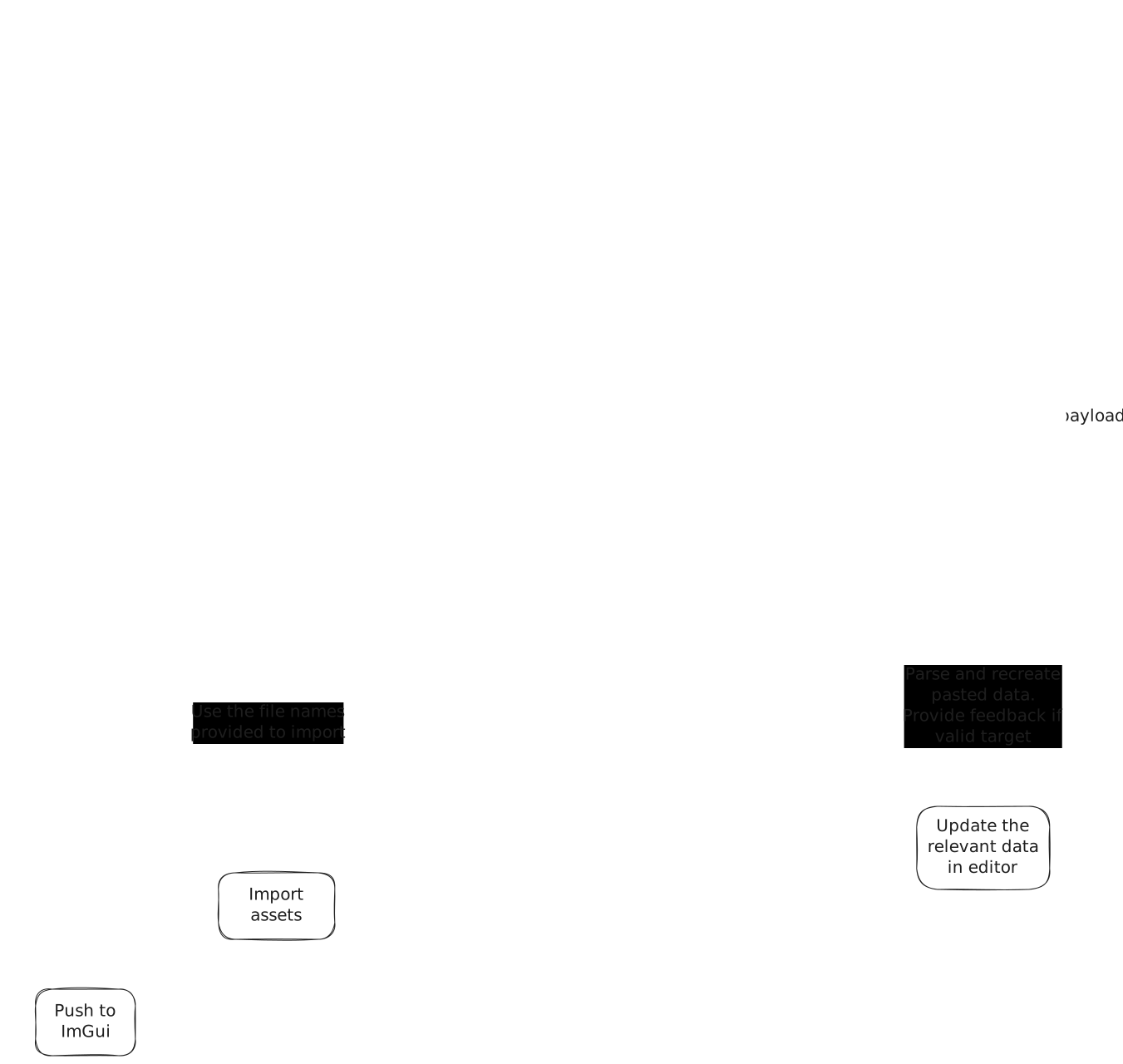
Payload Types
| Payload Type | Description | Typical Use‑Cases |
|---|---|---|
| Object Subtree | Requires a custom serializer/archive that can recreate objects at the target location. The archive must distinguish between objects that should be duplicated and those that should be cleared (nulled). | Moving whole hierarchies of objects while preserving relative paths; cloning scene hierarchies. |
| Object Reference | Carries a direct reference (path) to an existing object. | Dragging a single object to a new location without copying the entire subtree. |
| Files (External Payloads Only) | References files that live outside the standard asset pipeline. | Importing raw media or third‑party assets directly from the file system. |
| Raw Serialized Values | Serialized data that can be pasted into any field, optionally with validation hints. | Copy‑pasting numeric values, strings, or configuration settings between fields. |
| Strings (External Payloads) | Plain text that is sent to external payload handlers. The final handling strategy is still under discussion. | Drag‑and‑drop of textual data such as material names or layer identifiers. |
These payload types are deliberately kept orthogonal so that new categories can be added without modifying the core drag‑and‑drop engine.
Current Implementation Tasks (Completed)
- Implement drag‑drop events in
WgWindow– Events are forwarded to the appropriate widget geometry and then to the payload system. - Convert external drag sources into internal payloads – External drag sources (e.g., OS‑level drags) are transformed into one of the supported payload types.
- Refine drop handling – Drops are only processed by the active widget or the widget currently being dragged when a suitable payload exists.
- Object‑Reference payload – Introduced a unified “Object Path” format for referencing objects across all scenarios.
- Content‑asset reference payload – Enables dragging assets from the content browser and supports spawning actors in the world.
- ImGui ↔ Widget Drag System Interop – Established a bidirectional communication pattern between ImGui and the widget drag system (see ImGui‑Widget Interop below).
ImGui‑Widget Drag System Interop
The interaction between ImGui and the widget drag system follows a deterministic sequence:
- Payload Arrives via
DragEnter– The widget checks that no payload is currently active. If the payload is valid, an external drag operation is initiated during the next ImGui draw cycle and exposed to ImGui. - Payload Originates in ImGui – The new payload is propagated back to the widget system using a request‑drag callback.
- Payload Leaves the Window – The ImGui payload is cleared, and any references are reset. This is typically done on the next frame to stay in sync with the drop‑clear behavior.
- Payload Is Dropped – When the modifier key is not pressed and the payload is null, references are cleared immediately.
This pattern ensures that drag‑and‑drop operations are consistent regardless of whether they originate from ImGui widgets, external OS drag sources, or internal editor widgets.
Viewport and Outliner Panel Editor
The viewport and outliner panels are the primary interaction surfaces for scene manipulation. Key drag‑and‑drop features implemented include:
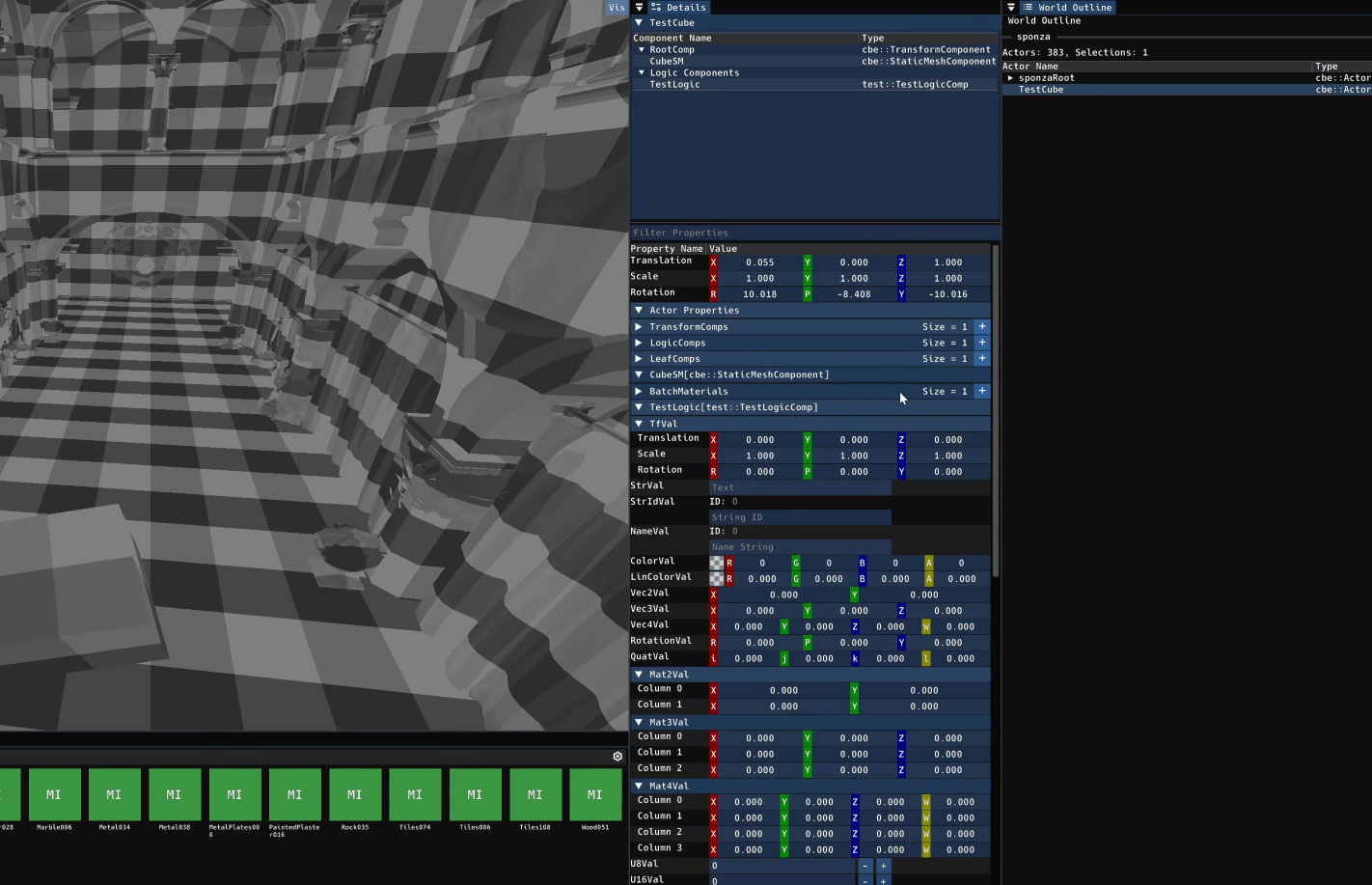
- Actor Creation via Drag‑Drop – Assets can be dragged directly into the viewport to instantiate actors, or dropped in the outliner to create new actors at a specific location.
- Actor Deletion – Right‑click context menus in both the viewport and outliner allow actors to be removed. Deleting actors can cause other actors to become invisible due to data‑overwrite issues; this behavior has been reproduced and is under investigation.
- Object Reference Drag‑Drop for Reparenting – By dragging object references, users can reparent actors, enabling flexible hierarchy modifications.
Summary
The drag-and-drop system in the Cranberry editor is a modular, payload‑driven architecture that cleanly separates data transfer from UI interaction. By defining explicit payload types, supporting async task progress reporting, and providing robust interoperability between ImGui, widget geometry, and viewport drawing interfaces, the system is prepared to handle current editing workflows and future extensibility needs.

Comments